Create CDB EdgeCompute HTTP applications
This guide describes how to create a CDB EdgeCompute app. Check out our CDB EdgeCompute overview article to learn more about the product.
You can create a CDB EdgeCompute app in two ways: by uploading a custom binary file (built using the JavaScript SDK or Rust) or by using a preconfigured template. If you use a template, skip Stage 1.
Stage 1. Create a Wasm binary file
To get started, create a .wasm file that you will later upload to the CDB Technical Web Portal.
Step 1. Set up the environment
1. Install the Rust compiler and cargo (package manager):
curl --proto '=https' --tlsv1.2 -sSf https://sh.rustup.rs | sh
2. Add the Wasm compilation target to Rust compiler:
rustup target add wasm32-wasip1
Step 2. Prepare the directory structure and a configuration file
1. Initialize the directory structure:
cargo new myapp --lib
2. Create a directory:
mkdir myapp/.cargo
3. Set the Wasm compilation target for the project by creating a config file myapp/.cargo/config.toml with the following content:
[build]
target = "wasm32-wasip1"
4. Create the project manifest file myapp/Cargo.toml with the following content:
[package]
name = "myapp"
version = "0.1.0"
edition = "2021"

[lib]
crate-type = ["cdylib"]

[dependencies]
edgecompute = "0.2"
Step 3. Create a source
In this example, we'll create a simple app that responds with "HTTP 200" and the text "Hello world!" in the response's body. You can find more examples in the [CDB repository](https://github.com/G-Core/CDB EdgeCompute-examples/tree/main/rust).
Create a main source file src/lib.rs with the following content:
use edgecompute::{
  body::Body,
  http::{Request, Response, StatusCode, Error},
};

#[edgecompute::http]
fn main(_req: Request<Body>) -> Result<Response<Body>, Error> {
  Response::builder()
    .status(StatusCode::OK)
    .body(Body::from("Hello world!\n"))
  }
Step 4. Compile a Wasm file
Produce the Wasm binary:
cargo build --release
The resulting Wasm code will be written to the myapp/target/wasm32-wasip1/release/myapp.wasm file.
Stage 2. Deploy an application
For detailed steps on how to deploy a CDB EdgeCompute app, refer to the relevant sections below:
-
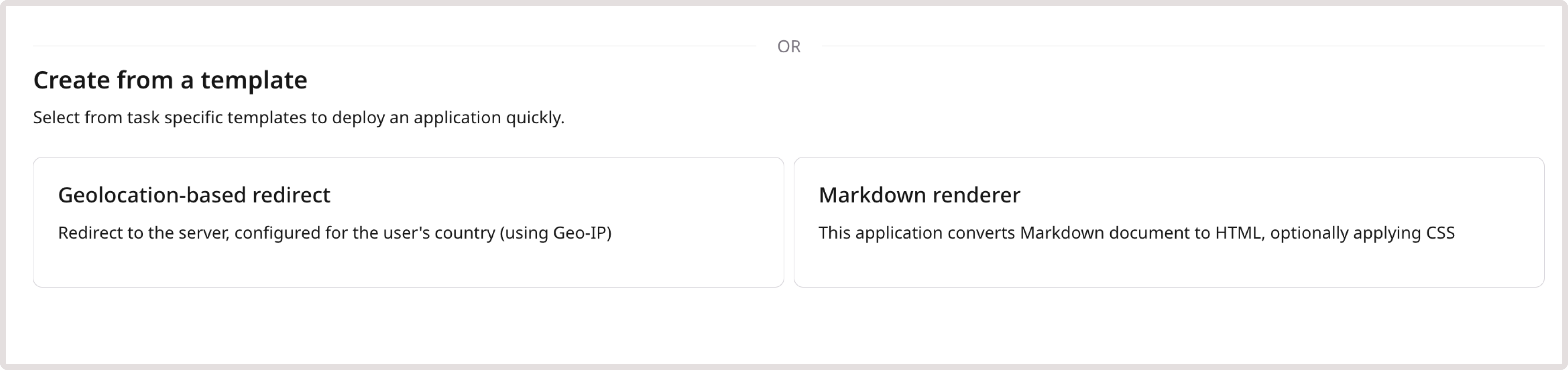
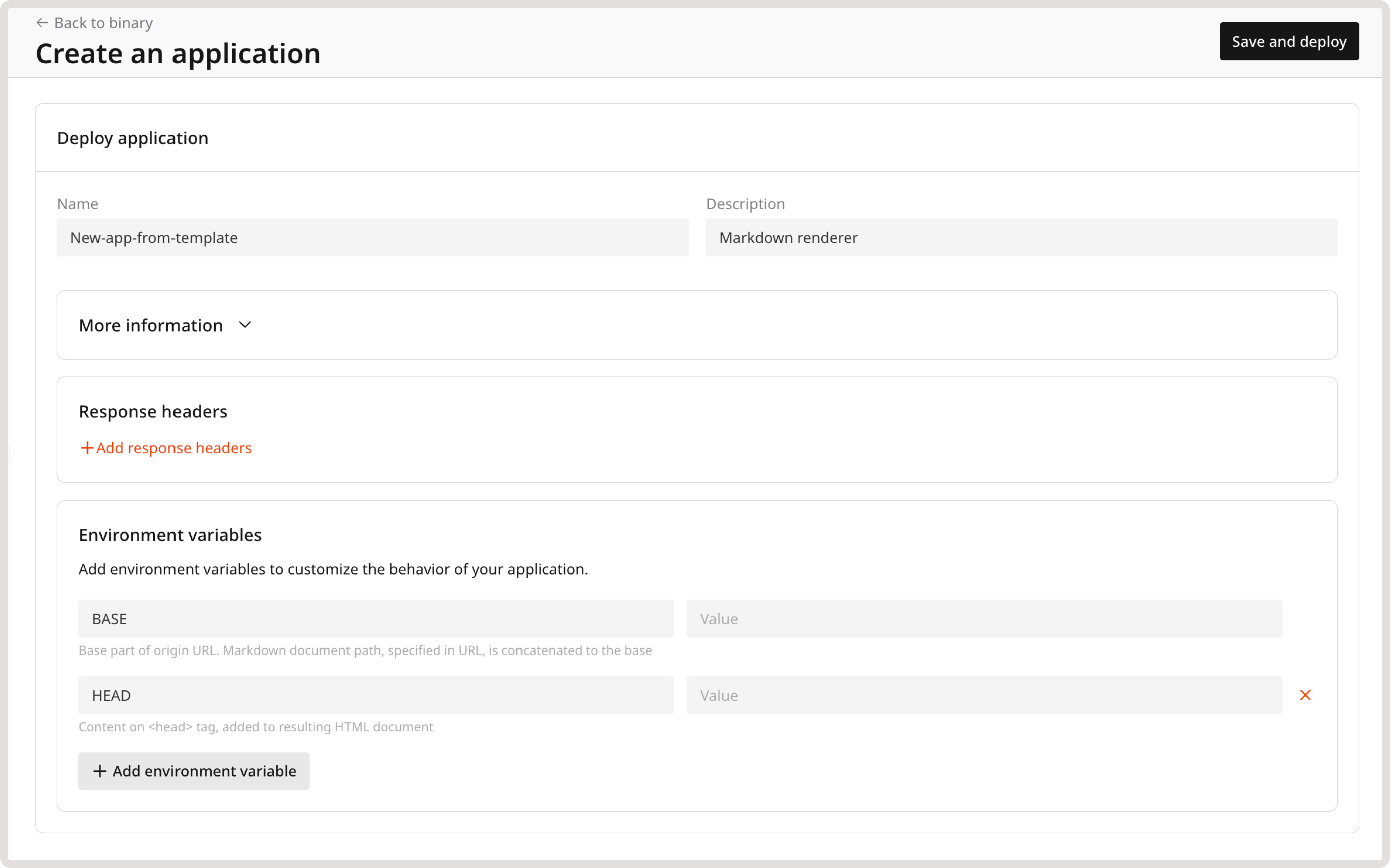
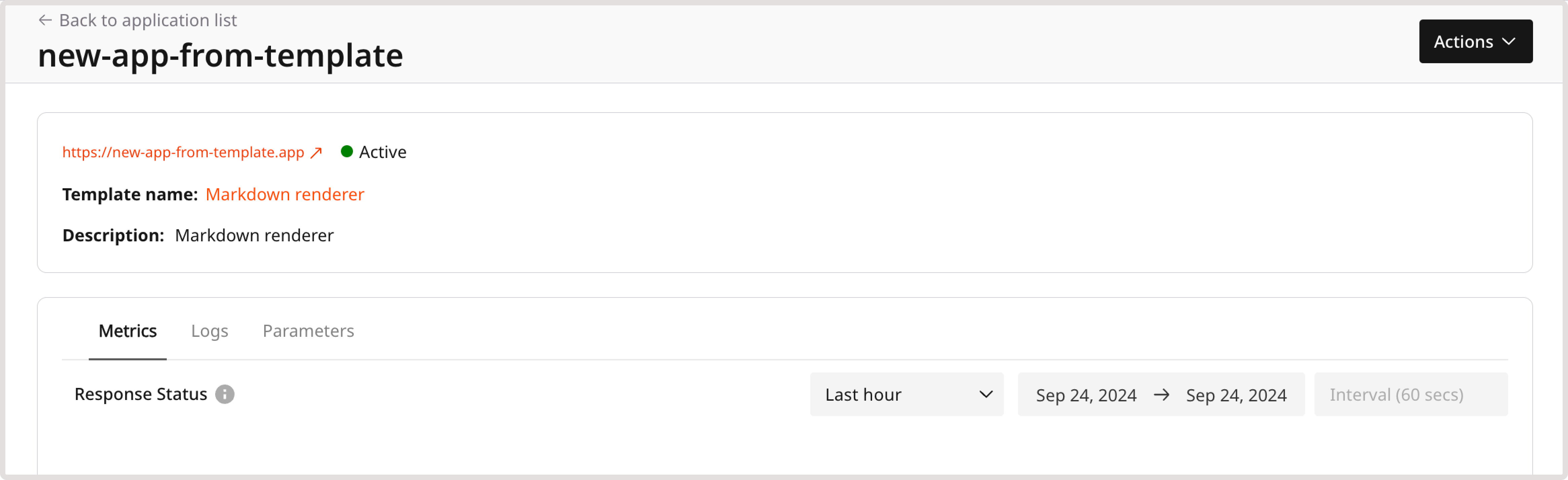
In the Customer Portal. Follow the instructions if you created a custom Wasm using either the Rust or Javascript SDK, or if you want to create a CDB EdgeCompute app from a preconfigured template.
-
Via command line: Follow the instructions if you want to deploy a custom Wasm using cURL and our API.
In the customer portal
1. In the CDB Technical Web Portal, navigate to CDB EdgeCompute > HTTP Applications.
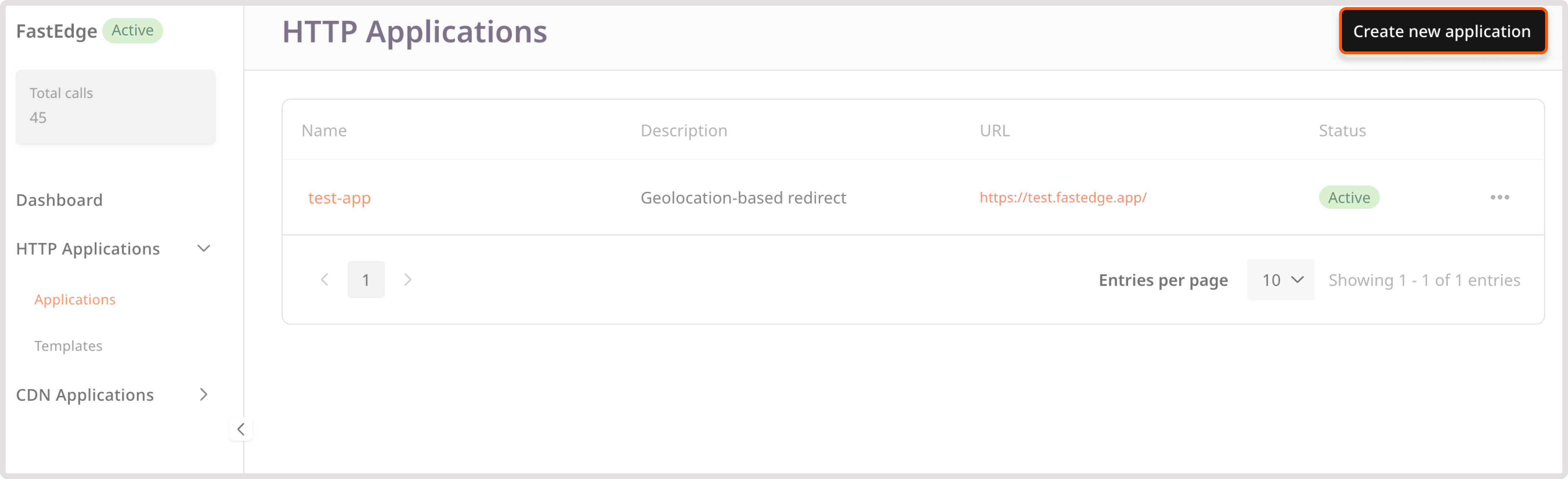
2. In the top-right corner of the screen, click Create new application.
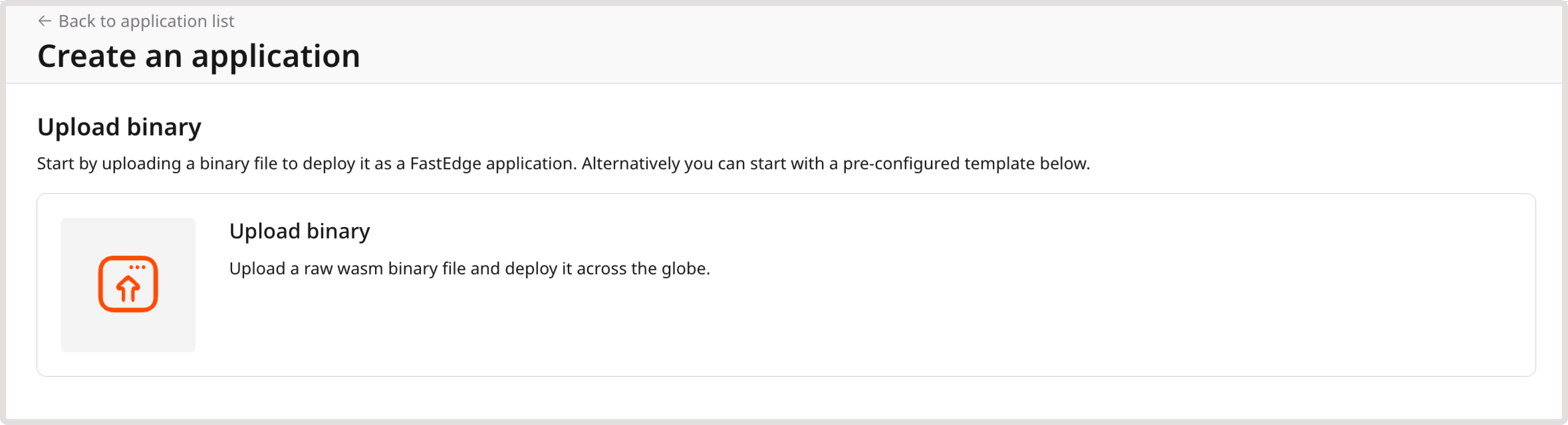
3. Click Upload binary.
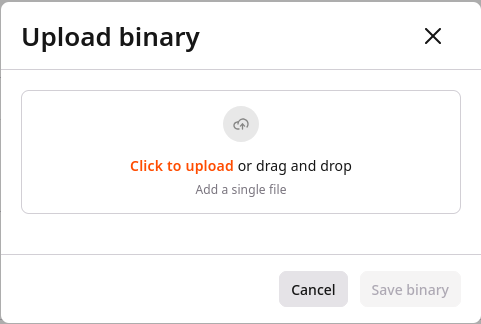
4. Choose your custom binary file.
5. Enter a name for your application and provide a description if needed.
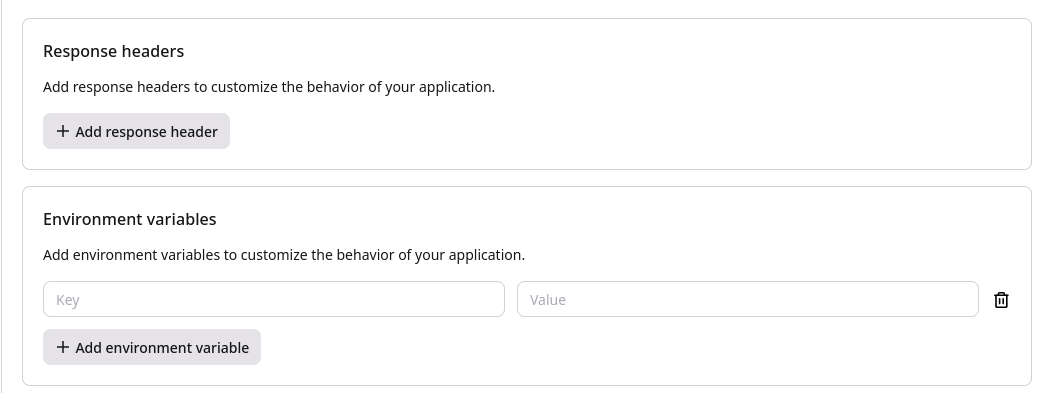
6. (Optional) Click + Add response headers to add fixed headers to the responses. For example, you may include CORS (cross-origin resource sharing) headers in each response to ensure secure communication between origins.
7. (Optional) If you want to customize the behavior of your application, click + Add environment variables and enter your data as key-value pairs.
Info
If you're adding sensitive information or want to ensure that any data in the app's configuration remains secure, click + Add Secret and use the Secrets Manager.
8. Check all the settings. If everything is configured correctly, click Save and deploy.
Your application has been successfully deployed.
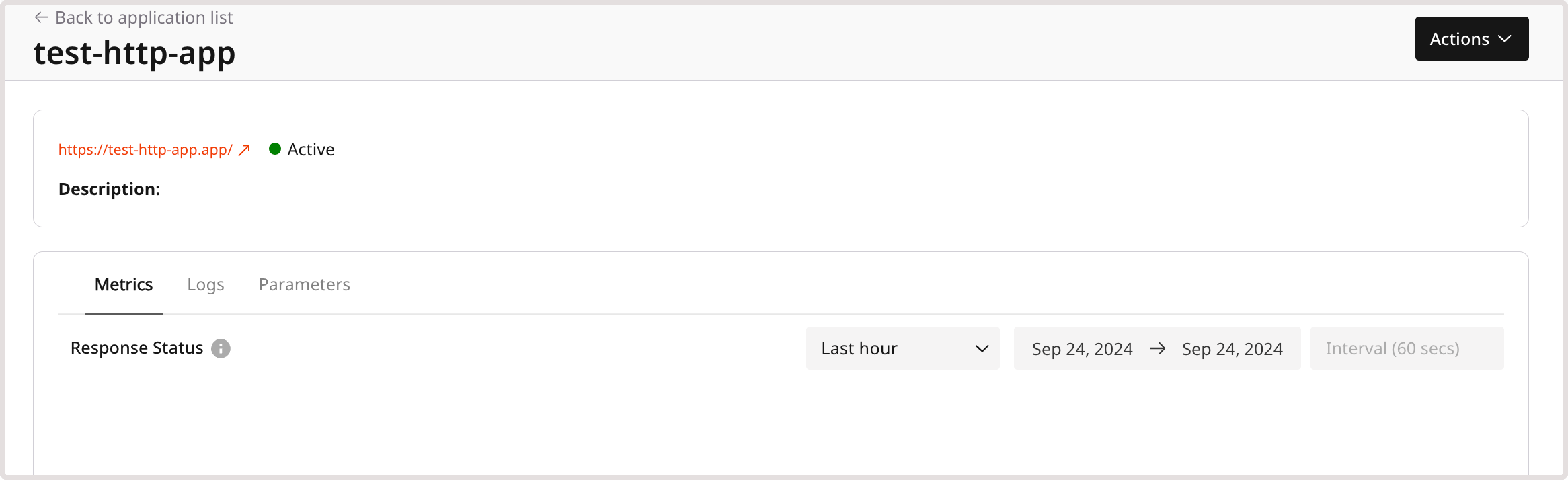
You can now test its configuration and adjust it as described in the following steps.
Via command line
1. Upload the Wasm binary to our edge servers by running the following API request from the repo's root directory. Insert your permanent API token instead of the api_key:
curl -X 'POST'
  'https://api.controlcenter.internationalcarriers.orange.com/docs/edgecompute/v1/binaries/raw' \
  -H 'accept: application/json'
  -H 'Authorization: APIKey api_key'
  -H 'Content-Type: application/octet-stream'
  --data-binary '@./dist/main.wasm'
In the response, you will receive the ID of the uploaded binary (<binary_id>). Make sure to save it, as it will be used in the following step.
2. Create the app by running the following API request:
curl -X 'POST'
  'https://api.controlcenter.internationalcarriers.orange.com/docs/edgecompute/v1/apps'
  -H 'name: app_name'
  -H 'accept: application/json'
  -H 'client_id: 0'
  -H 'Authorization: APIKey api_key'
  -H 'Content-Type: application/json'
  -d '{
    "binary": binary_id,
    "plan": "beta",
    "status": 1
}'
Where:
app_nameis the unique name of your app.api_keyis your permanent API token.binary_idis the ID of your uploaded Wasm binary.
Stage 3. Test an application
You can test the application after its deployment by clicking the application link on the deployment confirmation screen:
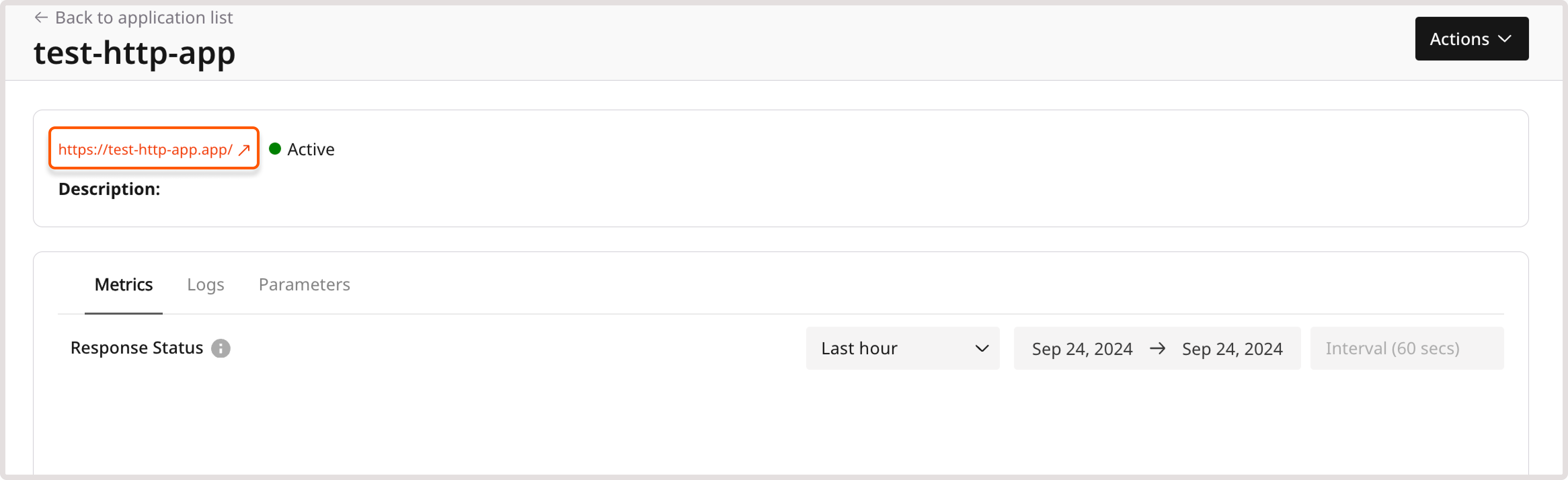
Additionally, you can inspect and adjust the configuration in the Customer Portal on the HTTP Applications page:
1. In the CDB Technical Web Portal, navigate to CDB EdgeCompute > HTTP Applications > Applications.
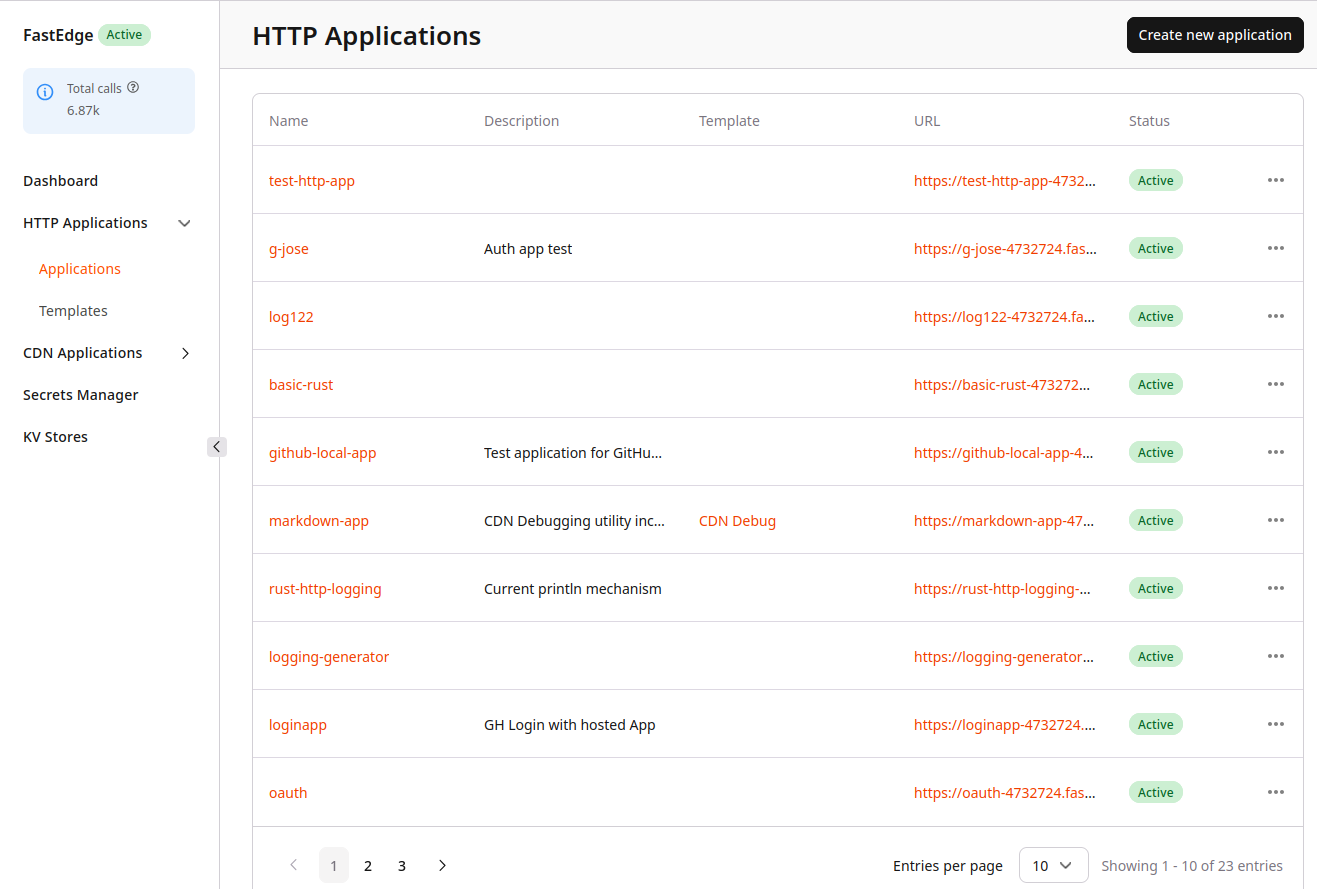
2. Find the app you want to test and click its name to open it.
3. Click the app link next to the app status to view the response.
For example, the response for the application configured in Stage 1 will be "Hello world!".
Stage 4 (Optional). Add more functionality
You can add more functionality to your app. For example, instead of printing "Hello world!", the app can print all request headers and set a custom response header from the environment settings. Let's see how to do that.
Step 1. Change the source
To print all request headers and develop a custom response header, replace the current content of the myapp/src/lib.rs file with the following:
use edgecompute::{
    body::Body,
    http::{Request, Response, StatusCode, Error},
};
use std::env;

#[edgecompute::http]
fn main(req: Request<Body>) -> Result<Response<Body>, Error> {
    // print headers
    let mut body: String = "".to_string();
    for (h, v) in req.headers() {
        body.push_str(h.as_str());
        body.push_str(": ");
        match v.to_str() {
            Err(_) => body.push_str("not a valid text"),
            Ok(a) => body.push_str(a),
        }
        body.push_str("\n");
    }

    // get value for custom header from the env var
    let value = match env::var("CUSTOM_HEADER").ok() {
        None => return Response::builder()
                    .status(StatusCode::INTERNAL_SERVER_ERROR)
                    .body(Body::from("App misconfigured\n")),
        Some(val) => val
    };

    // build response with body and custom header
    Response::builder()
        .status(StatusCode::OK)
        .header("Custom-Header", value)
        .body(Body::from(body))
}
Info
The headers listed in the following step are passed to the CDB EdgeCompute application, which uses the header content for functionalities like geolocation-aware redirects.
Step 2. Compile and upload the binary file
Update the application on the edge servers:
1. Compile a new Wasm file as described in stage 1.
2. Upload it to the CDB Technical Web Portal as a custom binary file.
When you open the app, you'll see all request headers from the environment settings. It will be similar to the following output:
HTTP/2 200
server: nginx
date: Thu, 19 Oct 2023 22:17:46 GMT
content-length: 616
custom-header: foo
access-control-allow-origin: *
cache-control: no-store
x-id: ed-hw-edge-preprod-gc39
cache: MISS
accept-ranges: bytes
dc: ed
geoip-asn: 7922
geoip-lat: 37.75580
geoip-long: -121.95270
geoip-reg: CA
geoip-city: San Ramon
geoip-continent: NA
geoip-country-name: United States
geoip-country-code: US
server_addr: 92.223.112.26
server_name: mistake-globe-6396.edgecompute.gcore.dev
connection: upgrade
x-real-ip: 1.2.3.4
x-forwarded-for: 1.2.3.4
host: edgecompute.gcore.dev
x-forwarded-proto: https
user-agent: curl/7.88.1
accept: */*
cdn-loop: nb1d2; c=11
pop-long: 6.1294
pop-lat: 49.6113
pop-reg: LU
pop-continent: EU
pop-city: Luxembourg
pop-country-code: LU
pop-country-name: Luxembourg
Troubleshoot an application
If you're having issues with your CDB EdgeCompute application, see Troubleshooting.