Secrets Manager
Secrets Manager allows you to store encrypted values for use across our global edge network.
Creating a secret
1. In the CDB Technical Web Portal, navigate to CDB EdgeCompute and choose the relevant page: Secrets Manager.
2. In the top-right corner of the screen, click Add secret.
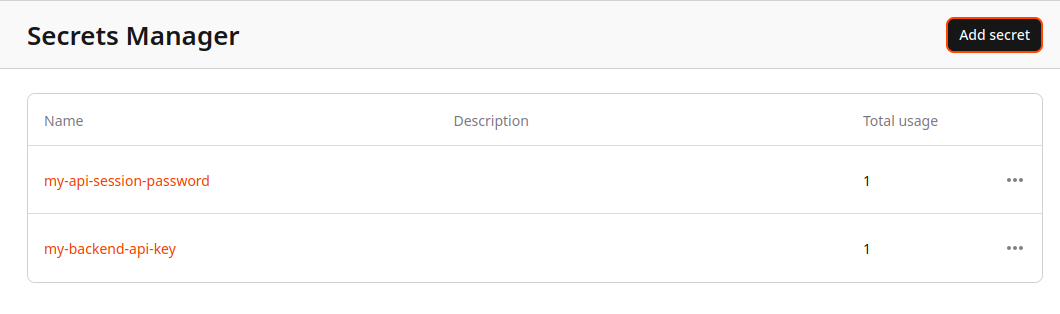
3. Enter a name for your secret and provide a description if needed.
4. Provide a slot number (default 0), and your secret value to be encrypted.
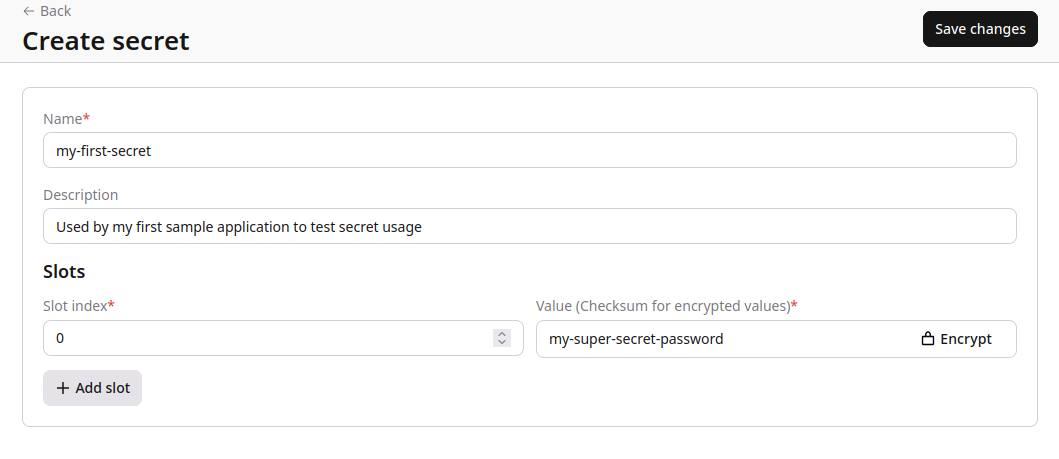
5. Check all the settings. If everything is configured correctly, click Save changes.
Warning
Once you save the secret, you won’t be able to view the original unencrypted value. You will only be able to replace it.
We store all encrypted variables in a separate table in the database to protect your information from potential security breaches or unauthorized access.
Editing a secret
1. In the CDB Technical Web Portal, navigate to CDB EdgeCompute and choose the relevant page: Secrets Manager.
2. Find the secret you want to edit and click its name to open it.
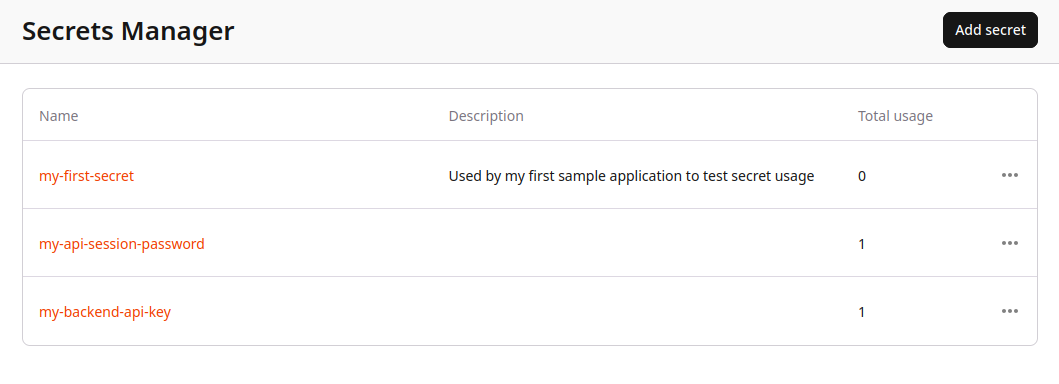
3. You can replace an encrypted secret by clicking the edit button.
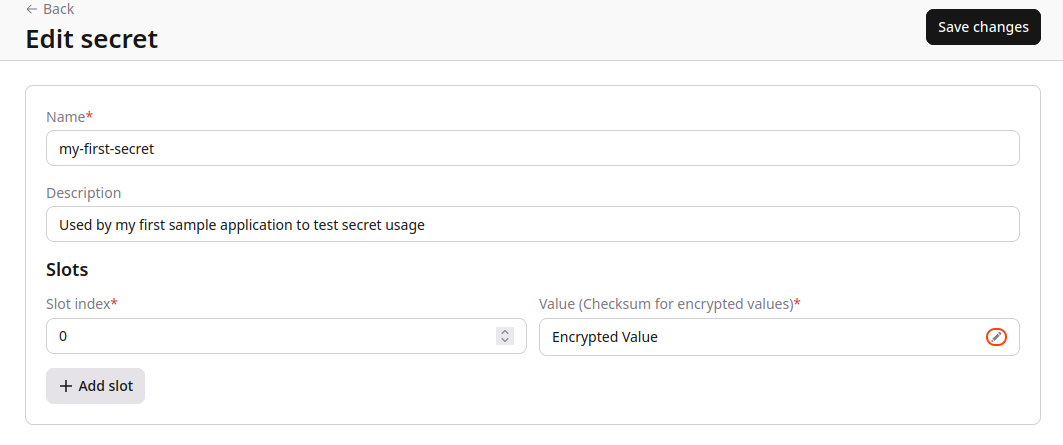
4. Check all the settings. If everything is configured correctly, click Save changes.
Deleting a secret
1. In the CDB Technical Web Portal, navigate to CDB EdgeCompute and choose the relevant page: Secrets Manager.
2. Find the secret you want to delete. click the three-dot icon next to the secret and select delete.
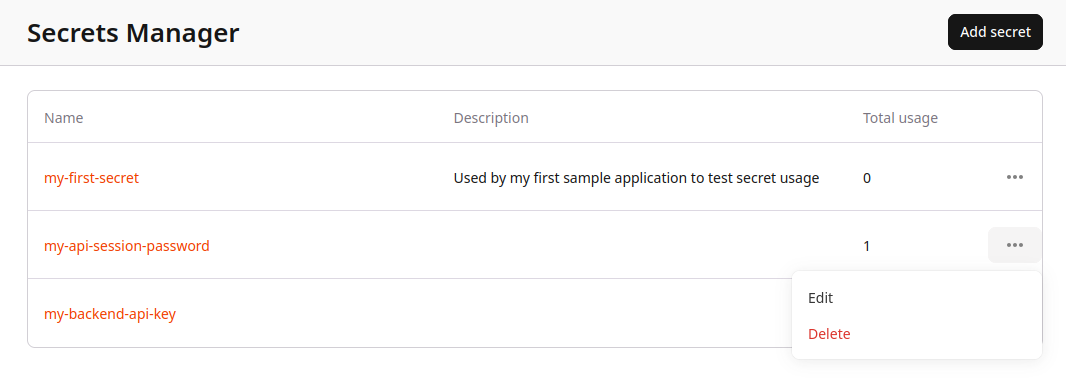
3. Confirm deletion
Info
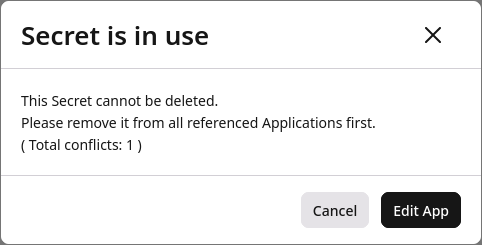
You can only delete secrets NOT in use. If the Secret is assigned to an application it will prompt you to remove it.
Accessing Secrets in applications
For more information regarding Secrets usage in applications see the JavaScript SDK and the Rust SDK
Info
In order to use Secrets in an application it must first be linked to the application. See Managing Applications - Secrets